Discover how to remove the background from product photos with our comprehensive guide on techniques and tools, including automated solutions. Read More!
Table of contents
This one trick has proven an extremely useful solution for product and portrait photography. It has recently been automated by the combination of software and hardware. You can now expect an even simpler path to have your product precisely cut and placed on a transparent background. Today, we will analyze the ways to remove the background for product photography and also look at why and where it might be useful to photographers and retouchers.
Why remove the background from a product photo?
Product photography | Automated vs Manual - background removal
The first question you will be facing in product photography for business are the requirements of ecommerce platforms. This is often the main reason to start looking at how to remove the background from product photos. Reasons include:
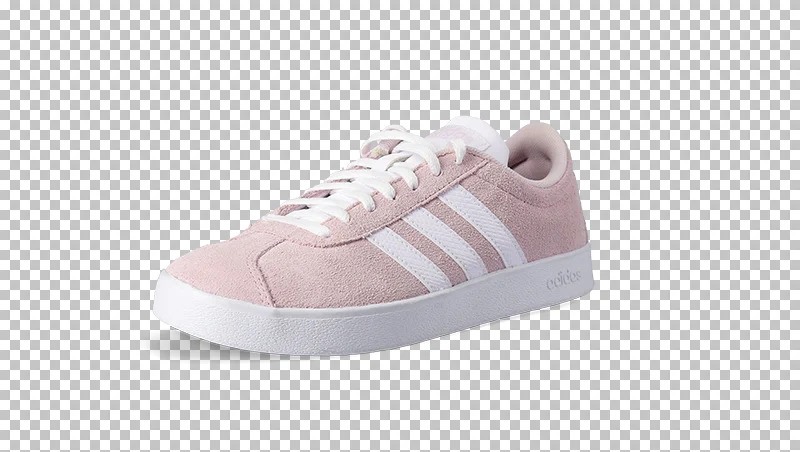
Platform requirements: Amazon and eBay require items to be presented on a pure white background with specific product-to-surface ratios. The quickest way to achieve this is editing with a transparent background. Check our guide on Amazon photography.
Aesthetics: Maintaining a uniform, clean look across your whole shop is easier when you can cut the product and introduce any background style.
Photography technique: Removing the background helps avoid vignetting (dimmed corners) and allows for easier brightening of edges without affecting the product itself.
Light modelling: Photographing on a white background doesn't guarantee a perfect RGB(255,255,255) result. Cutting the product allows you to focus on the product's true colors during lighting setup, saving time in post-production.
Contrast issues at the edges.
Perfectly cut. No contrast issues.
Given the above limitations, removing the background is often the easier path. You avoid contrast problems on the borders, gain multi-colored background options, and can easily place the product in a brochure setup.
The next question is: "how to remove the background in a product photo?". We will guide you through several methods used in professional practice.
How to remove the background? The 2 ways.
So you have chosen background removal as necessary in your product photography process. And you even remember not to use colored backdrops, as it may produce an unwanted halo effect around the edges of the item. What now?
Green backdrop before cutting.
Green aura left after cutting.
Most of background removal happens in the image editing stage. Let’s have a look.
Operating background removal in Adobe Photoshop
Adobe Photoshop is the most common tool used for product background removal, although open-source programs like GIMP are also available. Manual removal requires editing each file separately, following a strict order of steps for every image.
Final results can be saved in editable formats like .psd or .xcf, while web-ready files usually require .jpg or .png. PNG files allow for a transparent background, which is essential for web overlay effects. Note that manual editing typically prevents batch saving.
Outsourced or Automated Removal
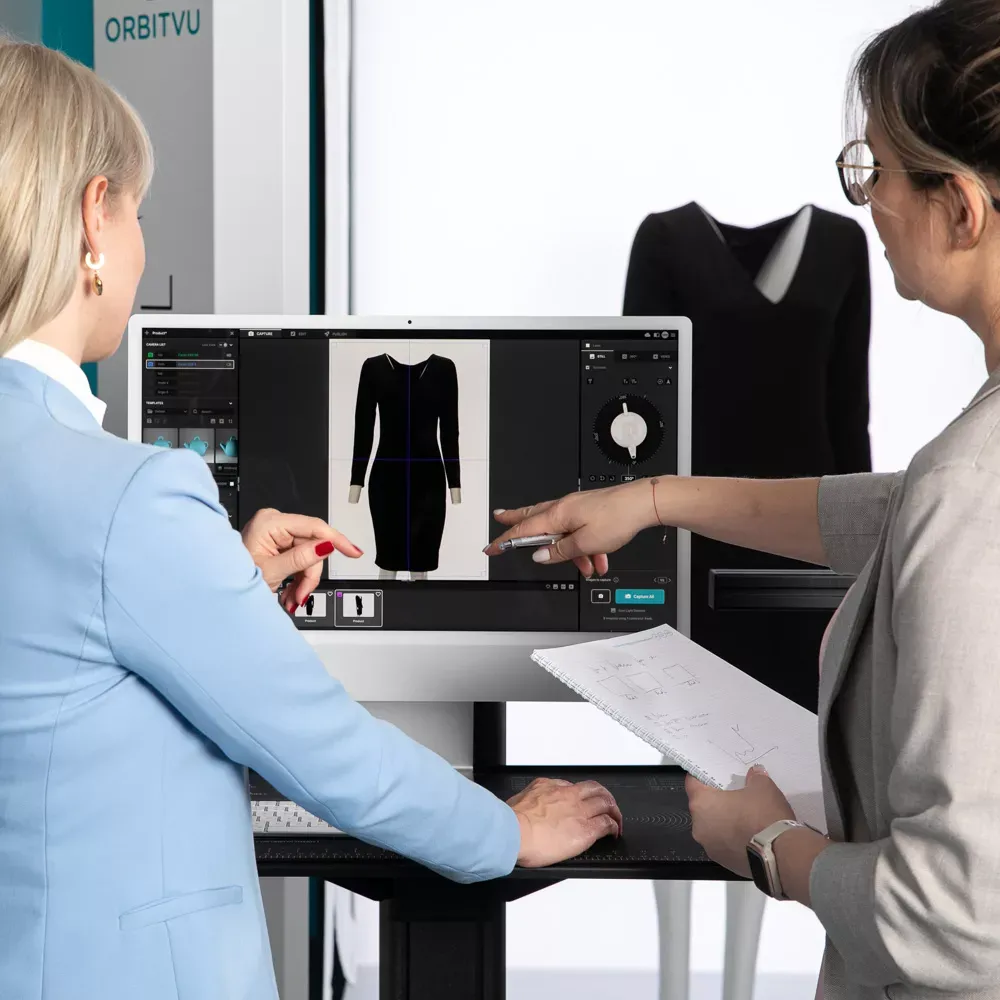
To lift the burden of manual editing, you can hire retouching companies (like Pixelz) or use batch photo editors (BatchPhoto, ACDSee). However, moving in-house with automated hardware-software solutions, such as Orbitvu, can offer professional results with significant cost reduction.
Orbitvu’s background removal algorithm works in batch mode, streamlining post-processing and enabling automated publishing to cloud servers or e-commerce platforms.
Completing Product Background Removal in Adobe Photoshop
If you choose the DIY route in Photoshop, your workflow will generally lead to one of two final modes: cutting or masking.
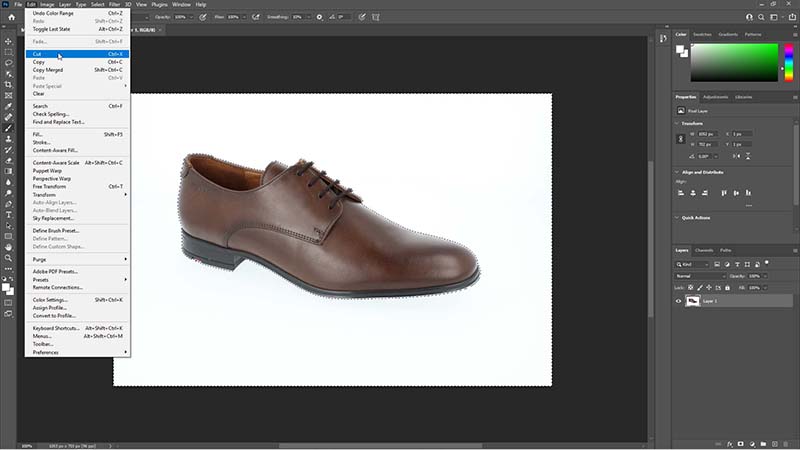
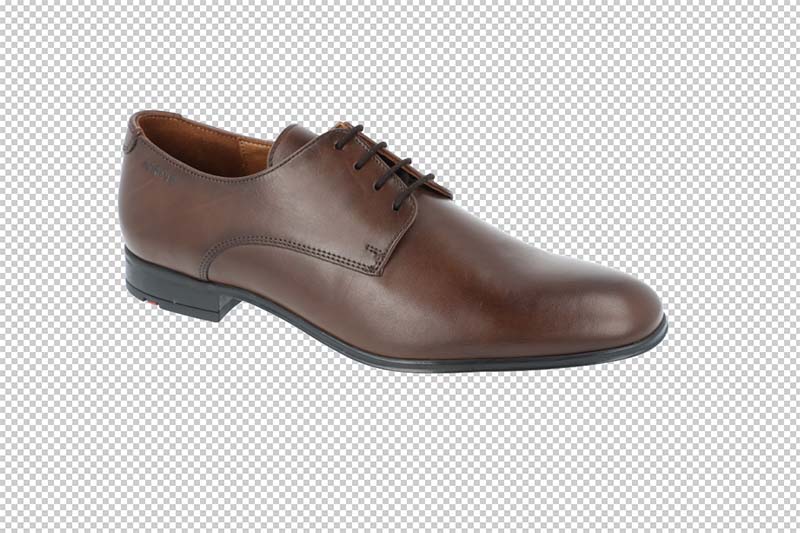
1. Cut the Background
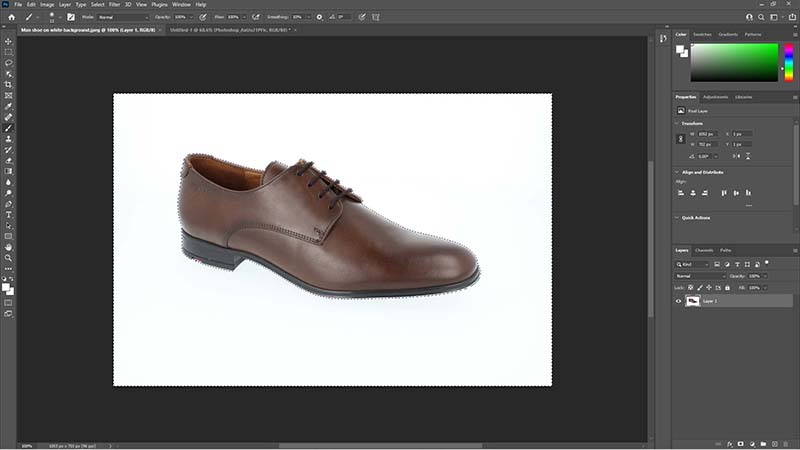
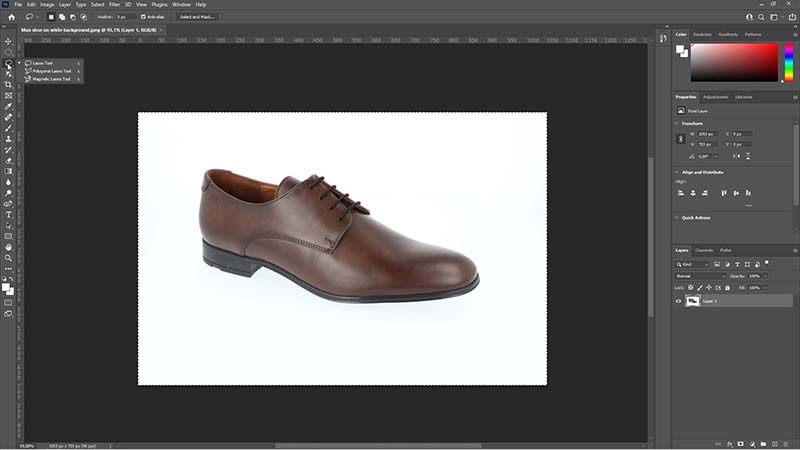
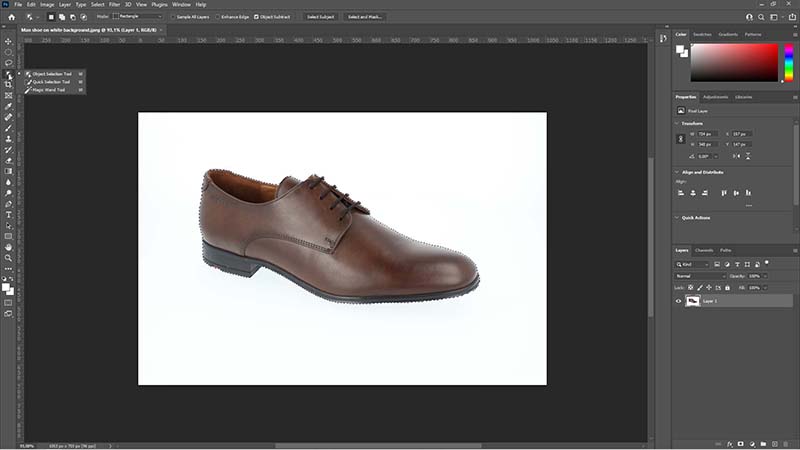
First, select the item using a selection tool until it is surrounded by the "marching ants" dotted line. Then, invert the selection (Select -> Inverse) to target the background instead of the object.
Select the background
Select the whole frame
This way you cut...
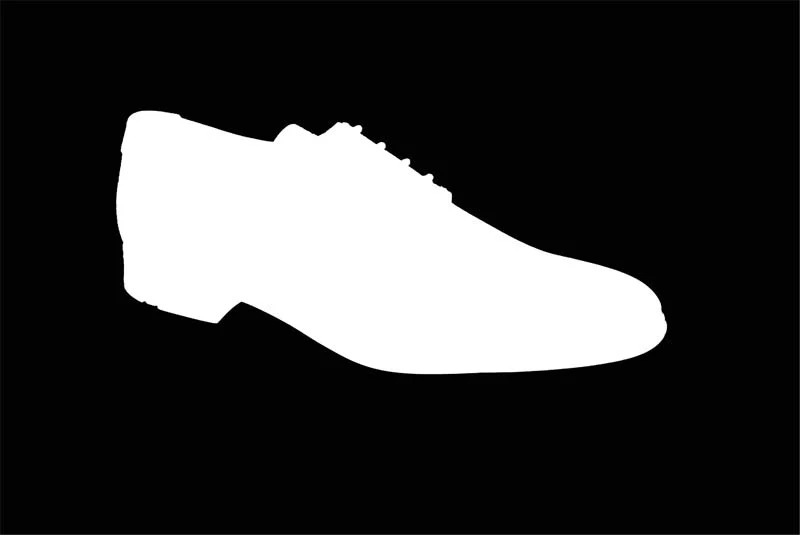
2. Create a Mask
Masking covers one part of the image while exposing another. It works like superposed sheets of paper; holes in the top layer allow you to see through to the layer below.
Background cut
Photoshop mask
What is the difference?
The main difference is versatility. Masking is non-destructive; you can restore any part of the background by simply changing your brush color. Cutting is permanent-once you delete those pixels and save, they are gone.
How to remove background - Eraser tool
How to remove background - Masking and unmasking
Tools in Photoshop
Marquee tool
This is the simplest way to select an area. You create a selection of a given predefined shape: it can be an ellipse or a rectangle. Press and hold SHIFT while selecting to maintain a perfect 1:1 ratio (square or circle).
How to remove background - Rectangular marquee tool
How to remove background - Elliptical marquee tool
Magic wand
A major simplification for selecting areas. After clicking a distinguished object, the selection automatically covers it with high precision. Best for objects with smooth edges and no fine grids or threads.
Quick Selection tool
Works similarly to the magic wand, but allows you to additively select more areas by moving the tool over them. Use ALT to unselect specific parts.
Object Selection tool
A powerful AI tool in recent Photoshop versions. Simply point to the area where the object is located, and the algorithm calculates the selection automatically.
Magic wand
Quick Selection
Object Selection
Selection tools grouped under the "W" shortcut.
Pen tool
The Pen is a manual tool to create a path that can be transformed into a selection. It is the most precise way to handle rounded objects. After closing the path, right-click and choose "Create a selection" to define the edge sharpness via Feather radius.
Lasso tools (Shortcut: L)
Lasso tool: Freehand selection by drawing.
Polygonal Lasso: Connects points with straight lines – ideal for geometric shapes.
Magnetic Lasso: Intelligently snaps to the edges of the object as you move the mouse.
Lasso tool
Color range
Select Sky
A specialized function found in Selection -> Select Sky. It uses AI to automatically detect and select the sky, perfect for outdoor product shots.
When to use different Photoshop tools?
Photoshop has plenty of available options to select your shape. The question is which method to use and when?
The good practice, and one that saves time, is to start from the simplest selection methods, i.e. the automatic ones. They will most probably fail with objects of irregular and precise edges. It will never be a simple automatic job, if you aim at cutting the background from behind a head of curly hair...
For a start, remember about these two rules:
1. Simple objects, simple selection tools.
If you only wish to select a simple object that is visibly different from a uniform background, you will be satisfied with the results of the Magic wand or Object selection. Should the object be a little more complex, you might use these tools and correct the selection manually.
2. Varied background and irregular object, manual tools.
You will have most problems with the cutting of the background, if the object and the background are similarly colored or the edges of the item are unsharp, finely drawn, or uneven. The Lasso tool, or maybe the Pen, will help to choose which pixels you want out and which you want to keep in the selection.
PRO TIP: How to select and cut hair?
In the newer versions of Photoshop you get the ability to edit the mask at a very precise level. Below is the process step by step:
First, you duplicate the layer. Always work on a copy of the image, so that you will be able to return to the original at any time (Ctrl + J).
Create a new layer and set it to the desired background color. The new layer should be placed between two other existing layers.
Use one of the tools to select an area. In the video we used the simple selection placed under the "W" keyboard shortcut.
From the bottom menu of the layer section, create a mask for layer number 1.
Removing the background from images
Final thoughts
Removing the background from product images is a task that often works as a sad necessity. Noone would try to do it just for the additional effect, if the market requirements were not pressing for crisp, undistracting presentation of items in product photography. Realizing that there is no escape from background cutting can be the first step tointroducing a reliable process with perfect packshots at the end.
You can strive to photograph the products in a way that is background removal-friendly and do it yourself. It would mean using uniform backdrops and even lighting at a slight angle. Then the post-processing in editing software will be easier and less time consuming.
In a different approach, you might feel inclined to use the services of a professional studio and a retouching company. Outsourcing this process would take much trouble out of the way, however you will be left with less control over the process and a bigger burden for the bank account.
Finally, and most conveniently for a modern growing business, you can refer to product photography automation. There will be solutions that connect hardware and software to produce upload-ready, background-free shots in a matter of minutes. Orbitvu studios, available for all sizes of products, can do the job and reduce your money and time expenses at the cost of a single initial investment.
Find out more about the options automation opens and feel free to ask us questions, whether they are about Photoshop editing or recommended ways to spotless product photography.
Happy editing
REMARK: All Ctrl keyboard shortcuts can be replaced with “Cmd” on a Mac computer.
Bikes Product Photography I Automated Background Removal I Bike Studio
Talk to Orbitvu about your workflow
Use the form to tell us what you are planning and what kind of product content workflow you need.
AI-generated product images are fast and cheap, but they can drift from the real product. Here is where generated images lose product truth, what makes AI in product photography trustworthy, and how Orbitvu uses AI around the real product, never instead of it.
What tethering software actually does, how wired and wireless compare in 2026, the five categories of tools on the market, and how to choose one for a high-volume product photography studio.